Lucie saves you time and effort during enrollment by allowing you to add multiple coverage plans—an ACA medical plan and select supplemental plans—to a single online shopping cart. Here’s how that works.
Step 1 - Add to cart
Once your client picks a plan, simply click the Add to Cart button. Once you’ve added all their preferred plans to the cart, you’re now ready to begin the all-in-one enrollment process.
Step 2 - Generate a proposal
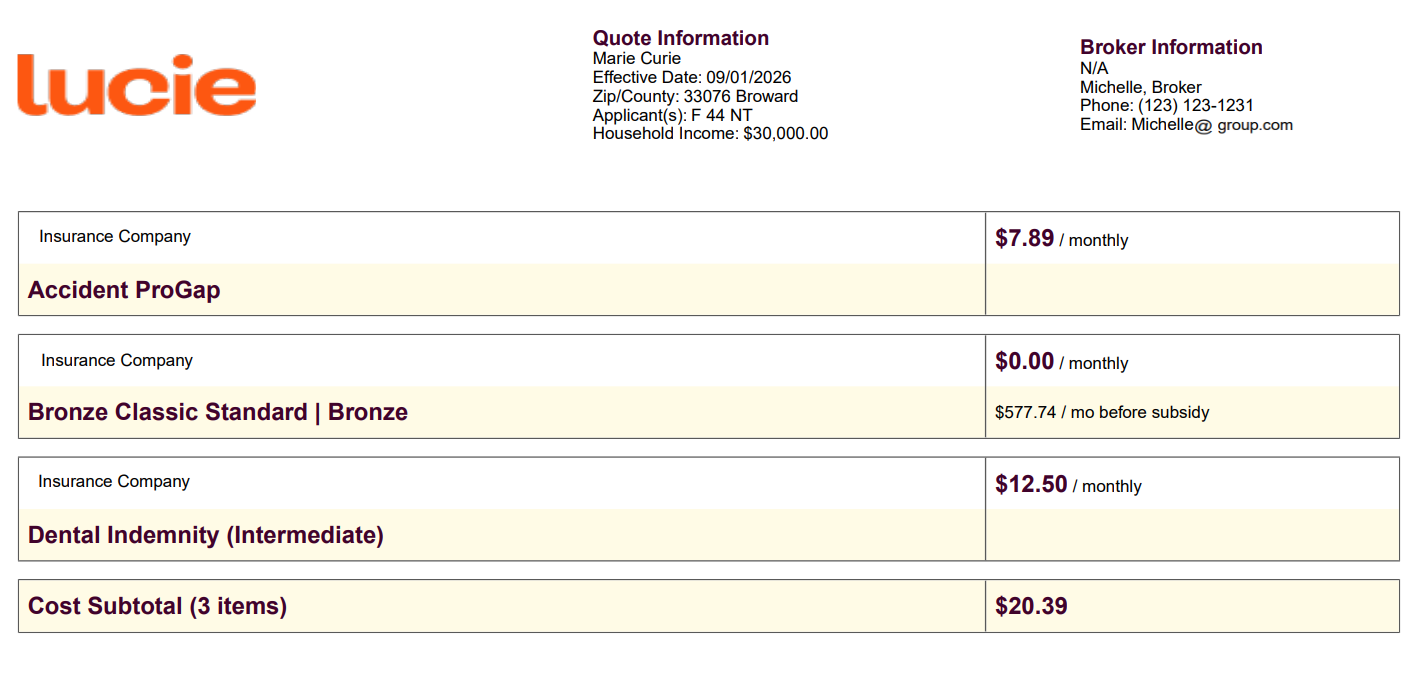
Once everything is in the cart, you have the option to create a proposal to share with your client. Just hit Print PDF near the top right of the cart page. This creates a clean, itemized estimate that breaks down each plan individually, shows the cost of each, and totals everything into one clear monthly amount. This PDF can be sent to your clients for their records or a final review.
Step 3 - Send an invite link
From the cart page, you can send your client a personalized link that allows them to self-enroll. To do so, simply click Invite Applicant, next to the Print PDF button in the upper right of the page. That sends your client a personalized message along with a direct quoting and enrollment link to complete the application on their own –under your NPN.
Step 4 - Begin enrollment
If you want to enroll clients yourself, you can start the enrollment process by clicking Begin Enrollment in the upper right corner of the cart page. This will take you directly into the enrollment workflow to complete the application.
The single shopping cart provides you with options to best support your clients. Whether you prefer to give them everything they need to enroll themselves or handle their enrollment yourself. Lucie makes it happen.
Need a hand? If you hit a hurdle along the way, we're here to help — just submit a ticket here.